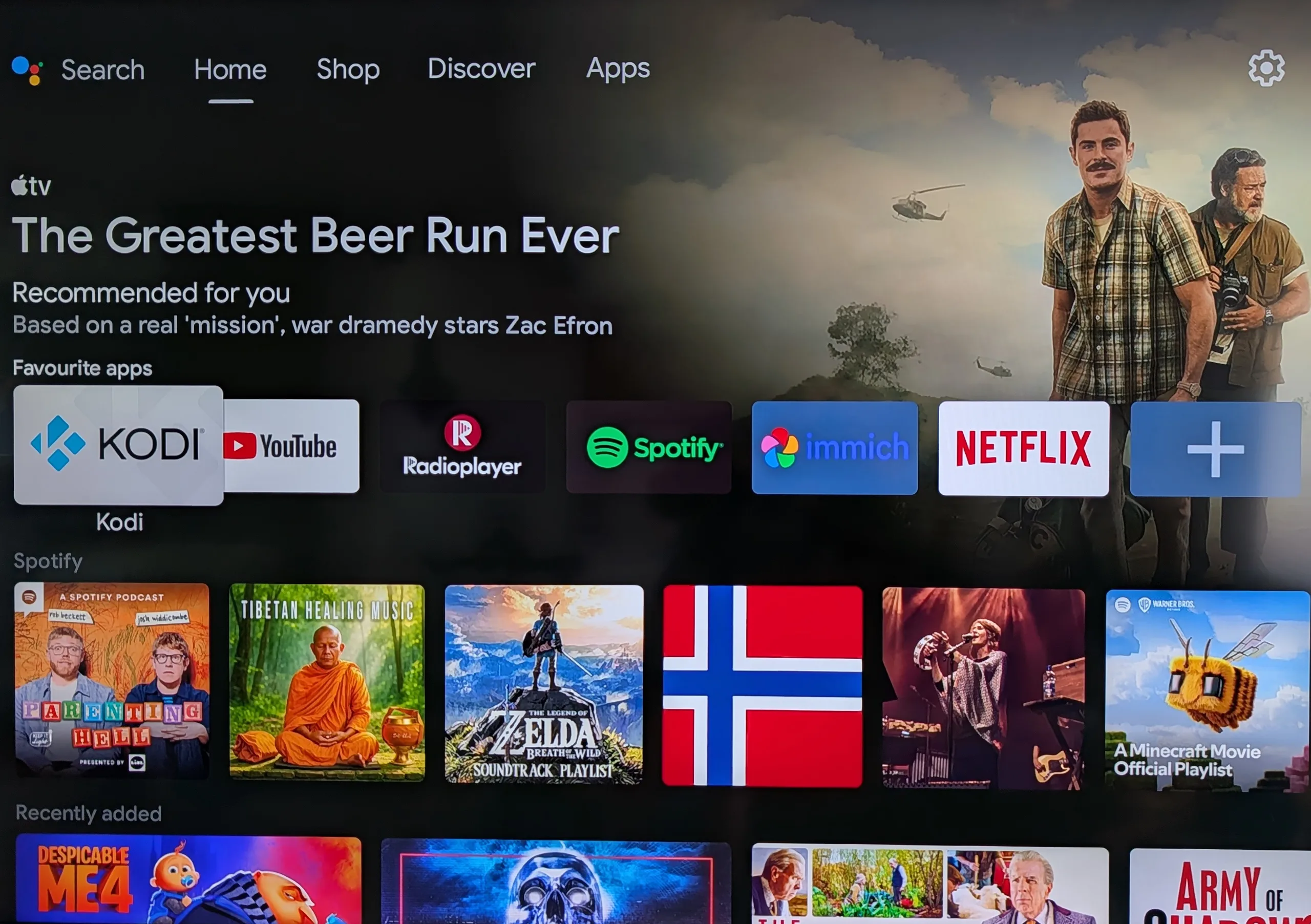
I’d been seeing a lot of people on the internet reverse-engineering their Android TVs: ripping out the bloatware and ads, keeping only the apps they actually use, and putting a clean custom home screen on top. This weekend I switched on my TV, got hit with a wall of sponsored rows before I could even find Netflix, and finally decided to do it myself.
So I opened Claude Code and asked, nearly word for word: “I have seen a lot of people reverse engineering their android tv and removing bloatware, ads and only keeping essential apps and a custom homescreen. Tell me how can you do that for me.” A few hours later my Xiaomi OLED TV was 32 apps lighter, ad-free, and running a home screen I designed myself.
A note before you start: this is completely safe and reversible. No root, nothing permanently deleted, and every change can be undone with one command. If there was any chance of bricking the TV, I wouldn’t have touched it (my parents would never let me hear the end of it). My own run had plenty of hit and trial; this post is the cleaned-up version. The code is public: GitHub repo.
TL;DR
- No root, no cable, no Android knowledge. Turn on developer mode on the TV, connect over Wi-Fi, and let Claude Code do the rest.
- The whole thing is three prompts. One to connect and debloat, one to build the launcher, one to fix whatever you don’t like. They’re all below, ready to paste.
- Everything is reversible. Apps are hidden, not deleted. One command brings any of them back.
- Two gotchas nobody warns you about. Android won’t let you replace the stock launcher easily, and disabling it can quietly break “Ok Google”. Tell Claude about both upfront and you skip a lot of debugging.
What You Need (and What You Don’t)
- An Android TV or Google TV. A TV with Android built in, or a streaming box. I did mine on a Xiaomi 65” OLED running Android TV 11.
- A laptop on the same Wi-Fi. I used a Mac. Windows and Linux work too.
- Claude Code, or any other SOTA coding agent (Gemini, ChatGPT and even DeepSeek work!).
- Android Studio (free), but only for the custom launcher. Claude uses its build tools; you never have to open it.
What you don’t need: root, a USB cable, an unlocked bootloader, or any Android knowledge.
Use the strongest model you have. My first try was accidentally on Haiku, which gave generic advice and insisted it “cannot access your laptop terminal”. Switching to Opus, the same question had it running commands on my TV within minutes.
Step 1 — Turn On Developer Mode (5 Minutes, on the TV)
Everything rests on ADB (Android Debug Bridge), a tool that lets a computer send commands to an Android device. Think of it as a remote control for the TV’s insides. Over Wi-Fi it lets Claude list every app, remove the bloat, install your own apps and take screenshots, all from your laptop.
This is the only part you do yourself, with the remote:
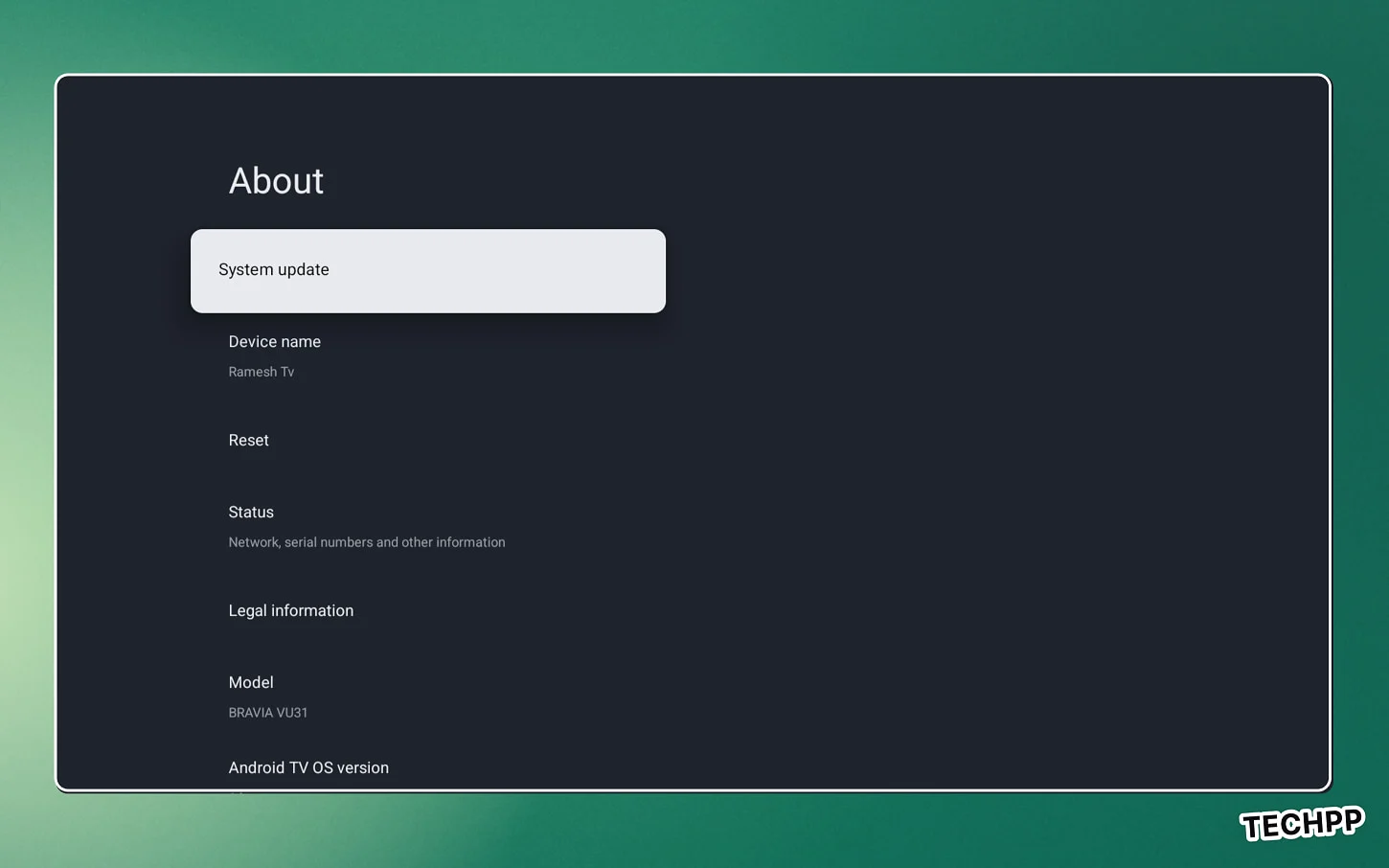
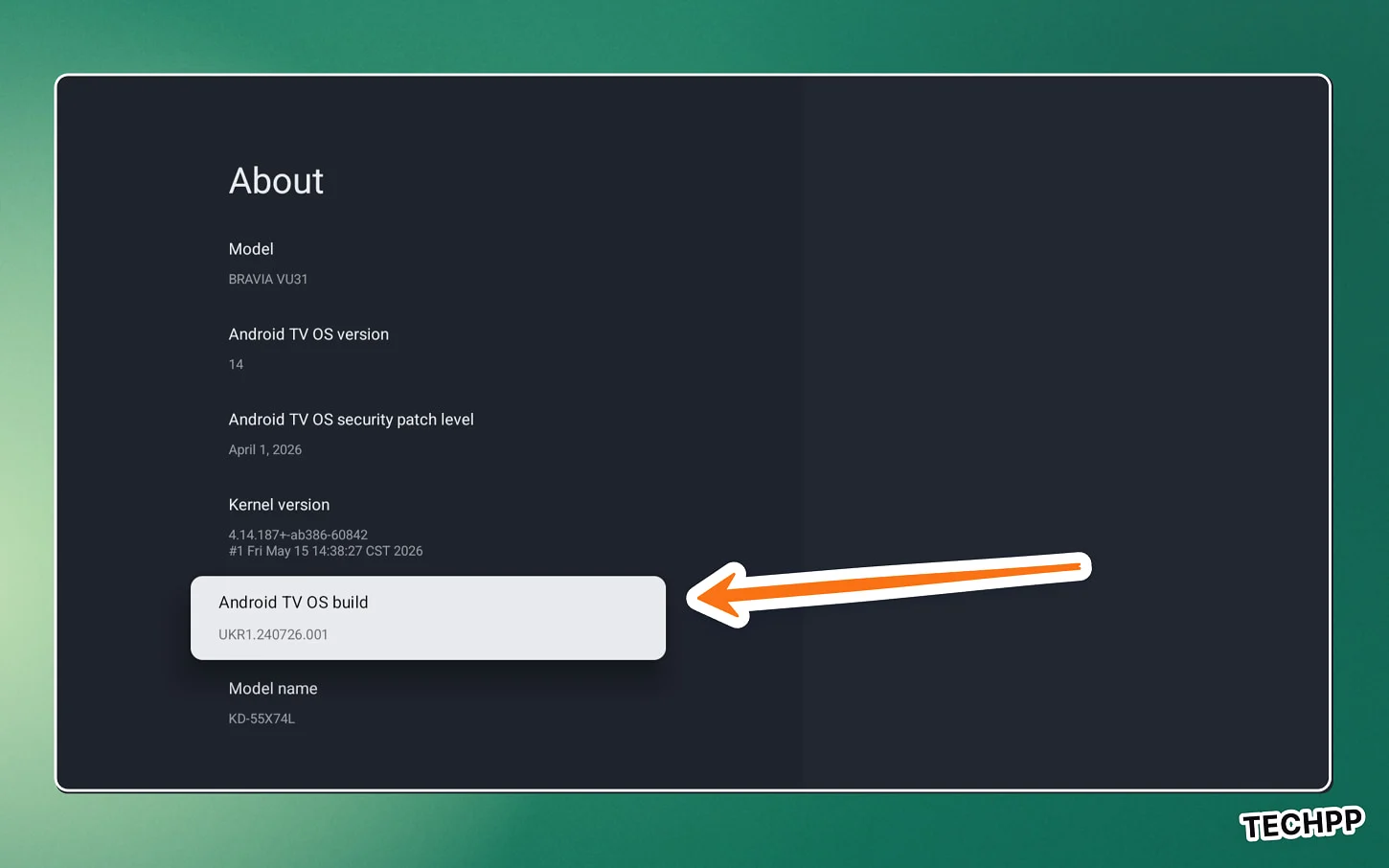
- Go to Settings → Device Preferences → About and click Build (or Android TV OS Build) seven times until you see “You are now a developer”.
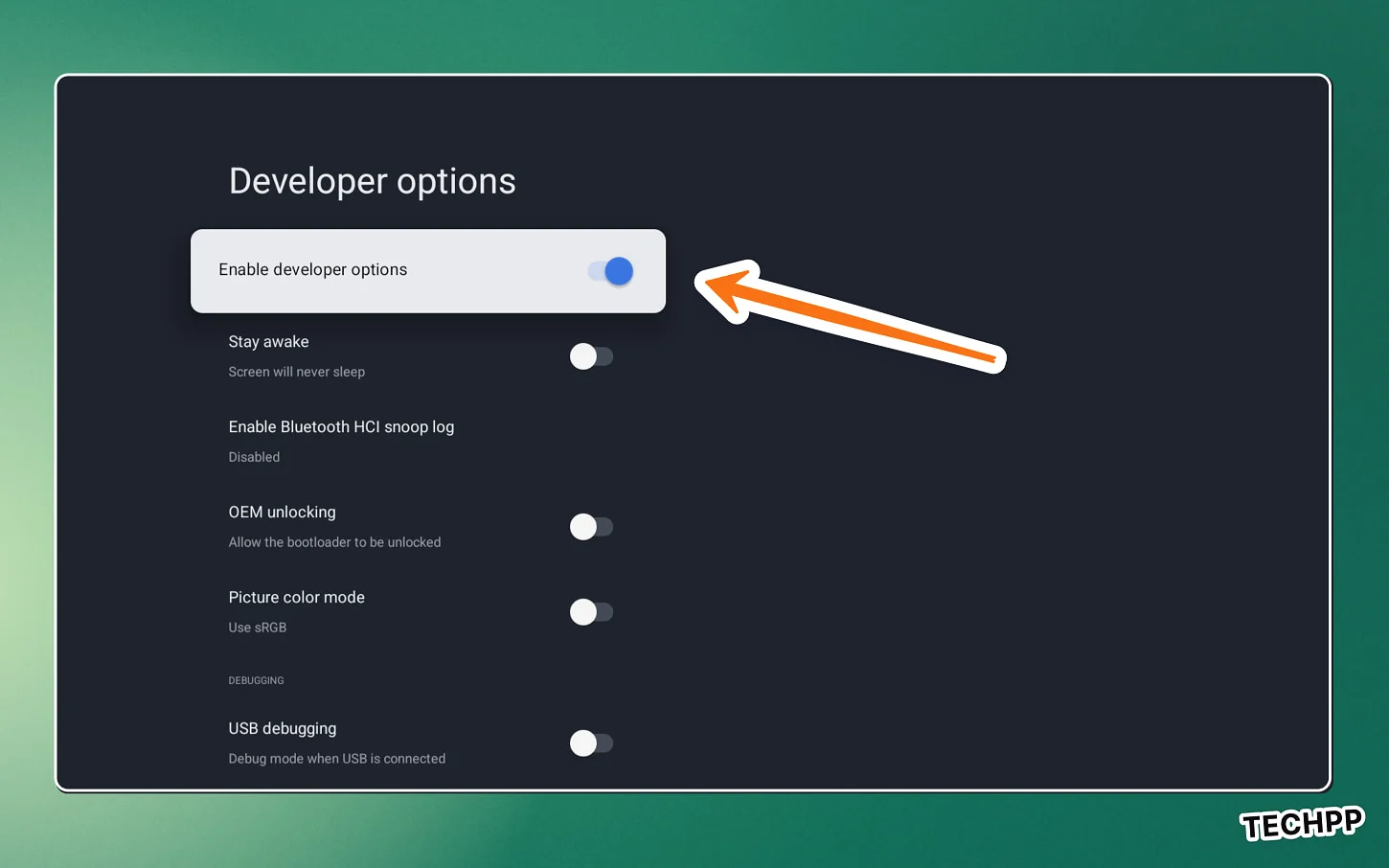
- Go back to Developer options and turn on USB debugging and Wireless debugging.
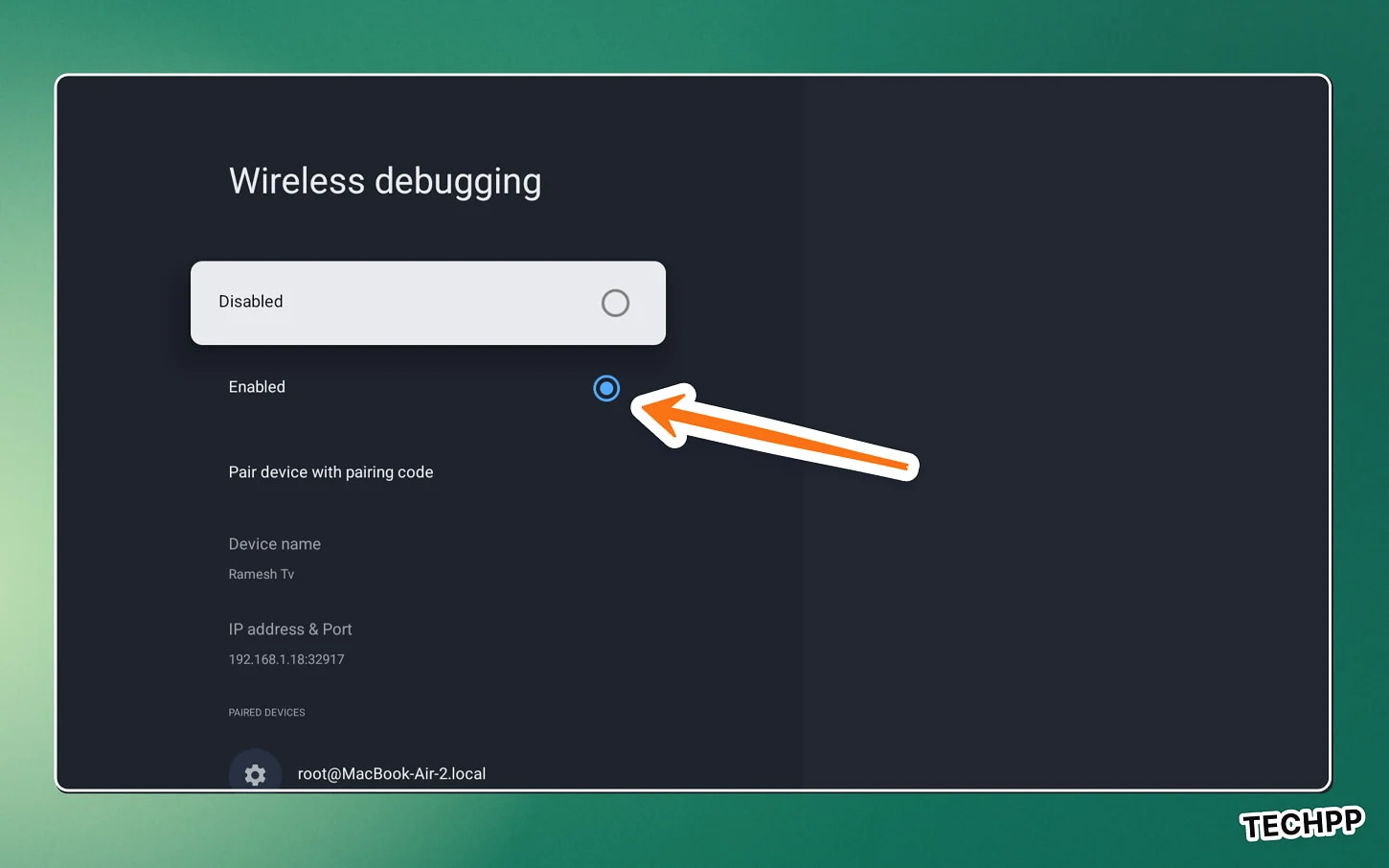
- Note the TV’s IP address from Settings → Network (or under the Wireless debugging screen). If the Wireless debugging screen also shows a port and a pairing code (newer Google TVs do), give Claude those too; it handles the pairing.
Step 2 — Connect and Debloat (One Prompt)
Open Claude Code on your laptop and paste this, with your own details filled in:
I want to debloat my Android TV: remove bloatware and ads, keep only the apps I use. I have seen you help others debloat their TV and want you to do mine. This is a TV I own.
Developer mode and USB debugging are on. TV IP: <your TV's IP>. Same Wi-Fi as this laptop.
Apps I use: <e.g. Netflix, Prime Video, YouTube, Hotstar>.

Install ADB if needed and connect. Then list every installed app grouped by category,
and mark which ones are bloat, which are safe to keep, and which must never be removed
(Live TV, remote/Bluetooth, picture and sound settings, system services).
Ask me before removing anything. Hide apps instead of deleting them so they can be restored,
and write a debloat script and a restore script so I can redo or undo this later.
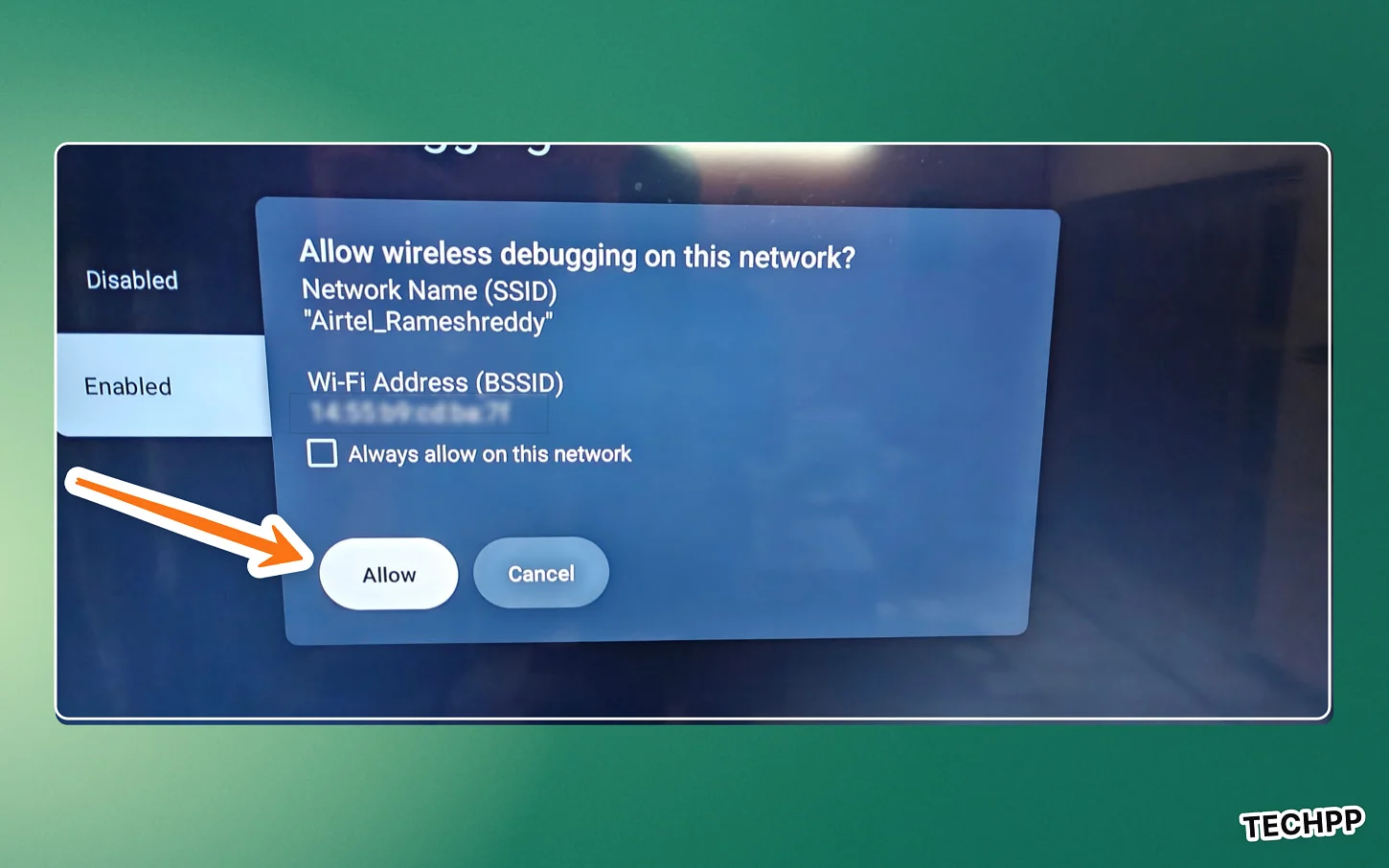
The first time Claude connects, a popup appears on the TV asking “Allow USB debugging?” (or Wireless debugging). Tick “Always allow from this computer” and press Allow. That’s the last time you need the remote for a while.
Claude then comes back with the list. On my TV it flagged 32 packages, including Mi TV+, a “TV Manager” memory cleaner with analytics baked in, a shop demo mode and a store disclaimer app. Just as importantly, it flagged what to leave alone: Live TV, the MediaTek chip services, the remote’s Bluetooth service and the picture settings. Choose your pick or as in my case go with Claude recommendations.
Why this is safe: Claude removes apps with pm uninstall -k --user 0. That hides the app from your user profile without deleting it from the system, so nothing is permanently gone. The two scripts mean you never have to remember any of this:
./debloat.sh <tv-ip>             # remove everything again (re-run after a firmware update)
./restore.sh <tv-ip> <package>   # bring one app back (or everything, with no package)
Step 3 — Build Your Own Launcher (One Prompt)
After the debloat you could stop, or install a minimal open-source launcher like FLauncher. I tried it and found it a bit spartan. Then I saw a screenshot of someone’s Apple TV-style home screen (a big clock, a glow in the colour of the selected app, large app tiles) and wanted exactly that.
Find a screenshot you like, and send it with this:
Build me a custom home screen (launcher) for this TV from scratch. Make it look like
Apple TV with minimal aesthetics and relevant navigation. Something like this: [screenshot]
Ask me what rows and buttons I want before you start.

When it's ready:
- Test it by taking screenshots over ADB, and fix anything that looks off.
- Before sending any remote key presses, check what's on screen so you don't interrupt me.
- Only set it as the default home screen after it works. Disable (don't uninstall) the stock
  launcher only if Android won't let mine take over.
- Make sure "Ok Google" still works after the stock launcher is disabled.
Claude asked me three questions with clickable options (which rows, which buttons at the top, static or glowing background), then wrote the app, built it, installed it and set it as my home screen. I never opened Android Studio.
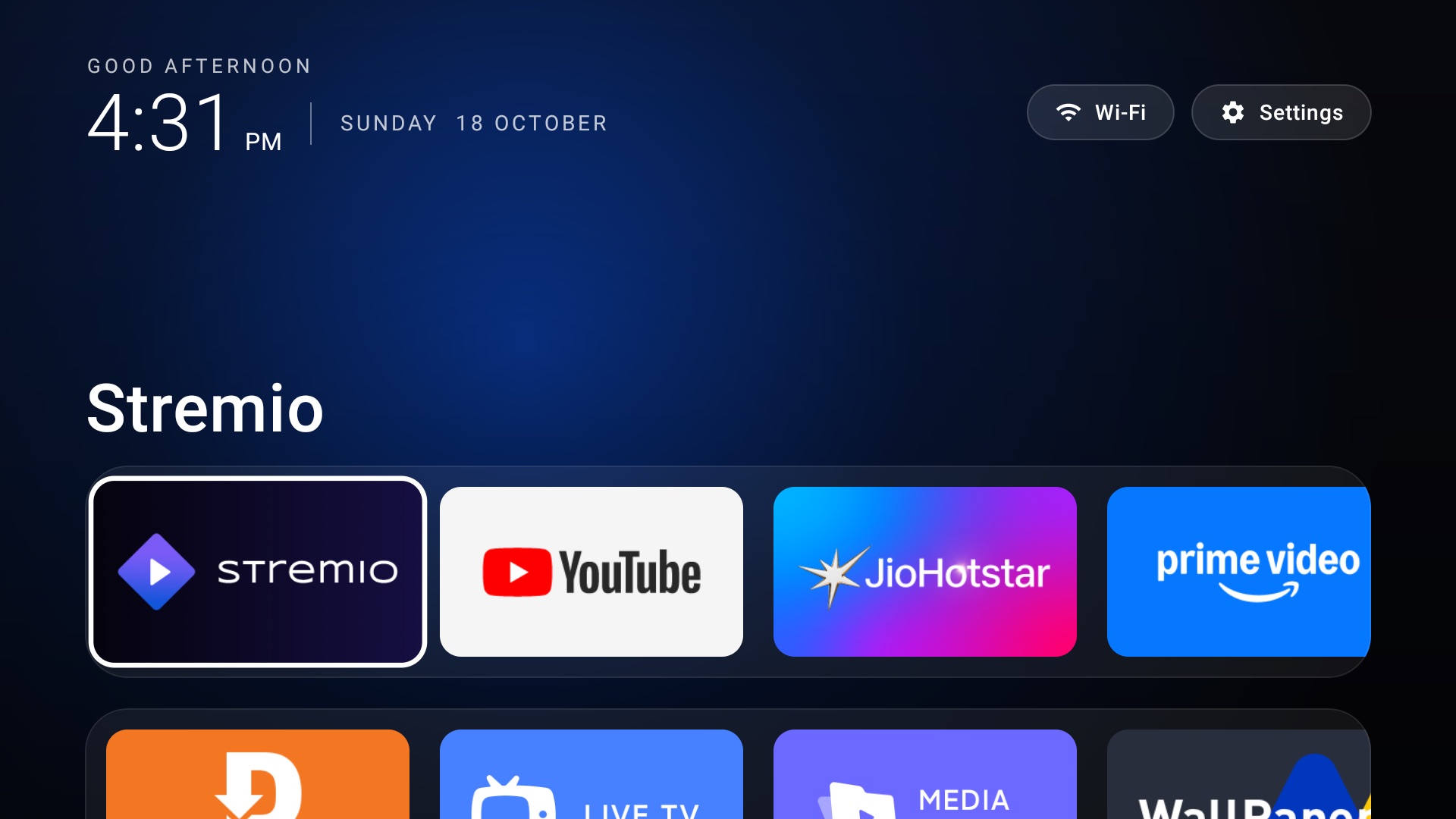
How Claude tests on a TV it can’t see: it takes screenshots over ADB and looks at them. That’s how it caught layout bugs (like the header scrolling off-screen) before I even noticed them. You judge the screenshots, it fixes what you don’t like.
The Two Gotchas, Explained
The last three lines of that prompt exist because I learnt them the hard way. Here’s why they matter.
1. Android doesn’t want you to replace the launcher
Telling Android “use my launcher as home” doesn’t always stick. The stock Google launcher is a system app with a higher priority, and Android lets it win that fight. The fix is to disable (not uninstall) the stock launcher, but only after yours is installed and tested. Do it in the wrong order and you’re looking at a black screen.
2. Disabling the stock launcher can kill “Ok Google”
This one took me a whole evening to understand (and I’d never have found it alone). After disabling the stock launcher, “Ok Google” just stopped working. Claude found the cause in a single log line: Android was refusing to give the Google Assistant the microphone.
On Android 11, a background app like the Assistant can only use the mic if the app on screen lends it that permission. The stock launcher had been doing exactly that, silently, all along. Remove it, and nothing lends the Assistant the mic any more. The fix is a tiny service in your own launcher that holds microphone permission (it never records anything) and shares it with the Assistant. If you disable your stock launcher and voice stops working, this is why. Asking for it upfront (that last line of the prompt) saves you the detective work.
I’ve kept this fix out of the public repo: it only matters on TVs with a hands-free microphone, and the voice button on the remote works either way. If you rely on hands-free “Ok Google”, the repo’s README explains exactly what to ask your coding agent for.
What I Did After That
Once the basics worked, I kept going (as one does at 10pm on a Sunday). In short:
- A “Trending this week” banner with backdrops of popular films and shows, and a button that opens the right streaming app directly. It uses a free API key from TMDB.
- HDMI inputs as tiles, so switching to a connected device is one press instead of a trip through the inputs menu.
- OLED burn-in care: a pure black background, a layout that drifts a few pixels every few minutes, and dimming when idle.
- A Liquid Glass makeover: frosted buttons, rows that run off the screen edge, and Apple-style type. I asked Claude to screenshot every screen, critique it like a designer, and then fix it.
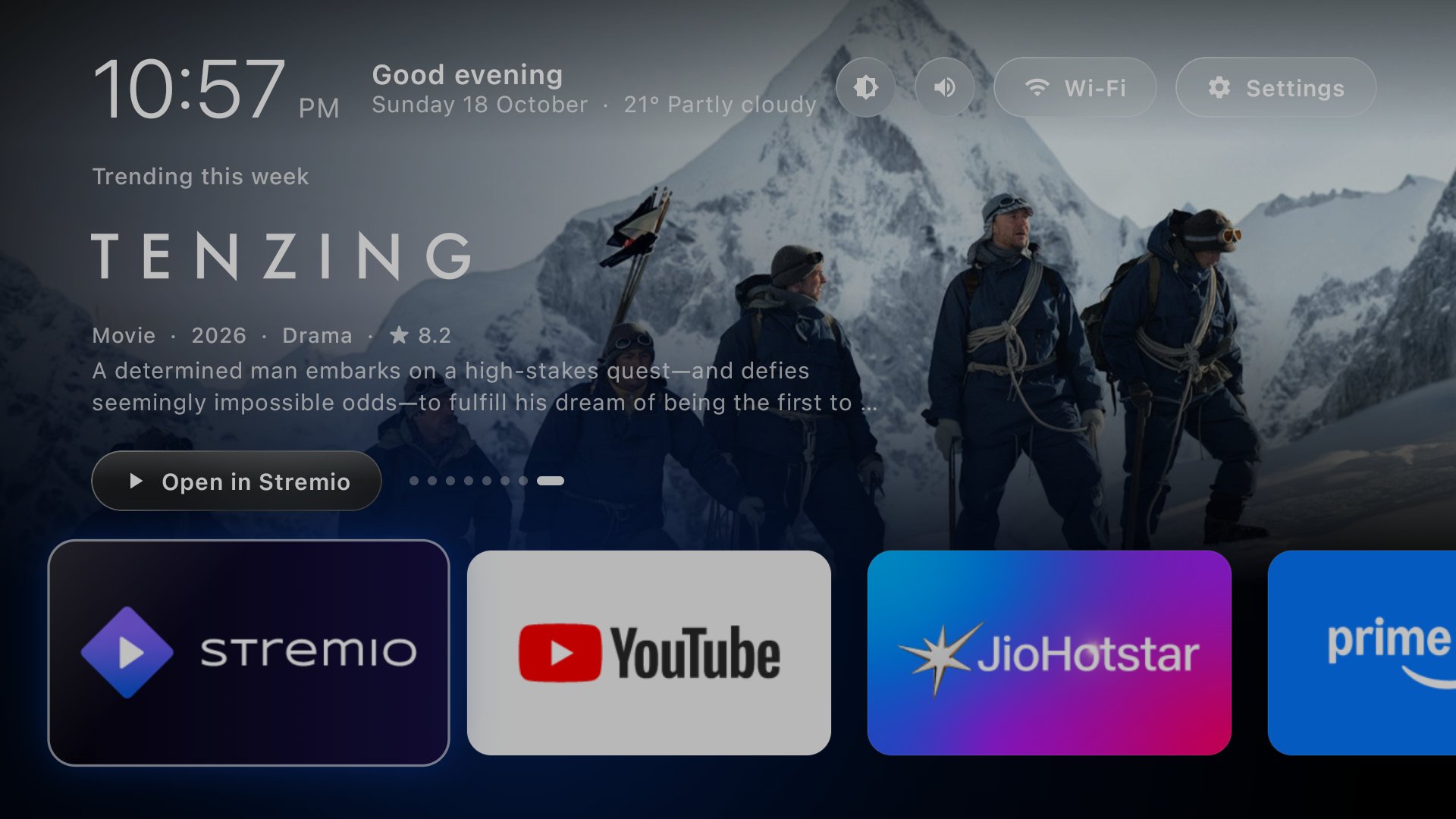
Each of these was one or two prompts, and none of them are needed for a clean, ad-free TV. If you want them, they’re all in the repo. The trending banner needs a free TMDB key, and the README walks you through getting one in a couple of minutes. (The fixes that only make sense on my TV, like switching straight to my Apple TV on power-on, aren’t in there.)
Before You Close the Laptop
Your TV is debloated and running your own launcher. Four quick checks make sure it stays that way:
- Reboot once. The TV should come back straight to your launcher. If you use hands-free “Ok Google”, check it still responds (see gotcha 2). If both work after a reboot, you’re done.
- Re-run the debloat after firmware updates. Updates can quietly bring removed apps back.
./debloat.sh <tv-ip>clears them again in seconds. - Know your undo.
./restore.sh <tv-ip>brings back every removed app. Worth knowing before someone at home picks up the remote and asks where something went. - Save the context. Before ending the session, ask: “Create a README with everything we have done, so you can pick this up next time.” Weeks later, a fresh session reads it and continues exactly where you left off.
Don’t want to start from scratch? Clone the repo (GitHub repo), open your coding agent inside the folder, and say “Adapt this launcher for my TV at <IP>. Ask me what I want in the favourites row.” Keep your free TMDB key handy if you want the trending banner. The gotchas are already written into the project notes.
The funny part is how little of this was actually hard. The most manual step was clicking “Build” seven times with a remote. Everything after that was describing what I wanted and saying yes or no to a list. The TV now opens straight to the apps we actually watch, which is all I wanted when I switched it on that weekend.
If you try this on your own TV and hit a quirk I haven’t, I’d genuinely love to hear about it. Find me on Twitter or LinkedIn. Always up for it. And if you want the rest of my vibe-coding experiments, they’re all in What I Built in 12 Months of Vibe Coding as a PM.